how to remove powered by blogger in blogger footer


Remove blogger attribution using CSS Codes

  • Login to Blogger account
  • Go to Theme > Edit HTML option
  • Click anywhere in the code after that press Ctrl+F.
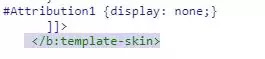
  • After that, a search bar appeared to you enter this code </b:template-skin> and press enter.
  • After that enter this code before this ]]>
  • #Attribution1 {display: none;} 
Powered by blogger removed by CSS code

  • So, Now click on the Save button.

Remove Attribution by removing the code

You can remove the attribution of the blogger from the code itself instead of going back to Layout.
  • Login to Blogger account
  • Navigate to Theme > Edit HTML
  • From the "Jump to widget" select the "Attribution" option (or any other name similar to Attribution such as Attribution 1 etc.)
  • After selecting the "Attribution" option from "Jump to Widget", deleting the entire code between
  • <b:section .... </b:section> that contain "attribution" widget. 
  • click save button

youtube video


How to Make Edge Always Open with Your Previously Open Tabs

While browsing with Microsoft Edge, you sometimes need to restart your machine or log out while in the middle of an important task or research process. Luckily, there’s a way to tell Edge that you’d like to preserve all your tabs and reopen them the next time you restart. Here’s how to set it up.

How to Make Edge Always Open with Your Previously Open Tabs


How to Find Your Windows PC’s Serial Number

Windows doesn’t display your PC’s serial number anywhere in its interface, and neither do popular system information tools. But you can often find a PC’s serial number with a simple command, a peek in your BIOS, or on the hardware itself.

Run Command Prompt, type the following command and then press Enter wmic bios get serialnumber

 view on youtube :


How to disable Task Manager on Windows 10

 On Windows 10, Task Manager is an advanced feature that gives you access to tools to start and stop applications, monitor system performance and running apps and services, and much more.

Although it is a handy tool, sometimes, you may want to disable access to prevent users from restarting specific programs, changing processes priorities, or because you need to comply with your organization's policies.

you may want to disable access to prevent users from restarting specific programs, changing processes priorities, or because you need to comply with your organization's policies. 00:31 Group Policy Editor - User Configuration :: Administrative Templates :: System :: Ctrl + Alt + Del Options - On the right side, double-click the Remove Task Manager policy. - Select the Enabled option, click apply and OK button. 01:30 Registry (for windows 10 home/no access to group policy editor) - Browse the following path: HKEY_CURRENT_USER\SOFTWARE\Microsoft\Windows\CurrentVersion\Policies - Create Subfolder System - at System (folder) key, Create DWORD (32-bit) Value DisableTaskMgr - set value 1 - You may need to restart your computer


How to Disable the Windows 10 Startup Delay

After Windows starts up, it waits about ten seconds before opening your startup programs. This “startup delay” lets your desktop and Windows services finish loading, making everything run a bit smoother. If you have apps you’d rather run immediately, you can do it with a simple Registry hack. Set Value 0 to : HKEY_LOCAL_MACHINE\SOFTWARE\Microsoft\Windows\CurrentVersion\Explorer\Serialize note: - If the Serialize key doesn’t already exist, you’ll need to create it. - If you ever want to re-enable this delay then delete the StartupDelayInMSec key


How to Disable Web Search / Bing integration in the Windows 10 Start Menu

 Windows 10, by default, sends everything you search for in the Start Menu to their servers to give you results from Bing search—so you better make sure that you don’t type anything private into your own PC’s Start Menu. Or, you could just disable the Bing integration in the Start Menu.

1. Open Local Group Policy Editor 2. Go to the following path: Computer Configuration::Administrative Templates::Windows Components::Search 3. Enable the following Group Policies: - Do not allow web search - Don't search the web or display web results in Search - Don't search the web or display web results in Search over metered connections You may need to restart your computer

Video Tutorial :


How To Lock/Protect File And Folder Using Command Prompt (CMD) In Windows 10

If we have many more important secret documents in our laptop or PC and by chance we have to share our laptop or PC with another person and we do not want to share our documents with him/her then we can lock our documents by using Command Prompt (Cmd) without using any third-party software.


here is the video tutorial :

How To Lock/Protect File And Folder Using Command Prompt (CMD) In Windows 10


How to disable registry editor and command prompt on windows

Do you have an intelligent, curious child who knows their way around the Windows registry? Or maybe you want to prevent a guest user on your machine from editing the registry. You can prevent users from making changes to the registry by disabling access to it.

The Registry Editor And Command prompt window in the Windows operating system can be disabled by following the steps below:

1. open gpedit.msc (Group Policy Editor) 2. Configuration\Administrative Templates and highlight the System folder. 3. 00:37 Disable Command Prompt :: "Prevent access to the command prompt." = enabled 4. 02:14 Disable Registry Editor :: "Prevent access to registry editing tools" = enabled 5. Click Apply And OK button ( You may need to restart PC )

here is video tutorial on youtube :


How to prevent users from changing proxy settings on Windows 10

Since there are many reasons to use a proxy, depending on your environment, sometimes you may need to prevent users from changing the proxy settings on Window 10 to properly implement the solution or prevent them from using this feature.

Privacy is perhaps the most important benefit because it allows you to navigate the internet anonymously since the computer will be requesting information to the proxy (not to the website directly). Then the server will retrieve the information for the client, hiding your public network address.

A Proxy Server can also improve internet speeds and reduce bandwidth. For example, if the organization has a proxy in the network, whenever a request is made, the server will also cache the web page in its database, and it will serve it to other users if they request the same information. Also, organizations may use this solution to monitor the websites users access and create an access list to block specific sites.

Here is video tutorial how to do that :

Youtube Video 


How to auto shutdown windows 10

 Normal Shutdown

To perform a normal Shutdown, open Run (Start::Run) and type in Shutdown –s . Your PC will shutdown just as it would when you click Shutdown from the Start menu Force Shutdown To perform a Force Shutdown, type in Shutdown –s –f. Notice a new parameter –f? This parameter is responsible for Fore Shutdown. Force Shutdown with Time To perform a Timed Force Shutdown, type in Shutdown –s –f –t 00. This will Force Shutdown your PC in 00 seconds (waiting time). Setting it to 05 will shutdown your PC after 05 seconds i.e after waiting for 5 seconds. Restart To restart, simply replace –s with –r.

video tutorial :


How to disable access to Control Panel

 If you don't want anyone altering the settings on your computer, in Windows 10 you can quickly prevent this by disabling access to the Settings app and the Control Panel using the Local Group Policy Editor and the Registry. This not only ensures your configurations will be preserved all the time, but it also helps stop users from modifying settings accidentally.


Here is the video tutorial :

How to disable access to Control Panel


How to Restrict access to removable storage devices on Windows 10

Disable access to prevent users from connecting foreign devices, which may contain malware that can harm the computer, stop users from trying to make a copy of certain information

  • Open Local Group Policy Editor.
  • Browse the following path: Computer Configuration :: Administrative Templates :: System :: Removable Storage Access
  • On the right side, double-click the All Removable Storage classes: Deny all access policy. Removable Storage Access Select the Enabled option. All removable storage classes deny all access policy
  • Click the Apply button.
  • Click the OK button.
  • Restart your computer (optional)

video tutorial on youtube :